
Dashboard
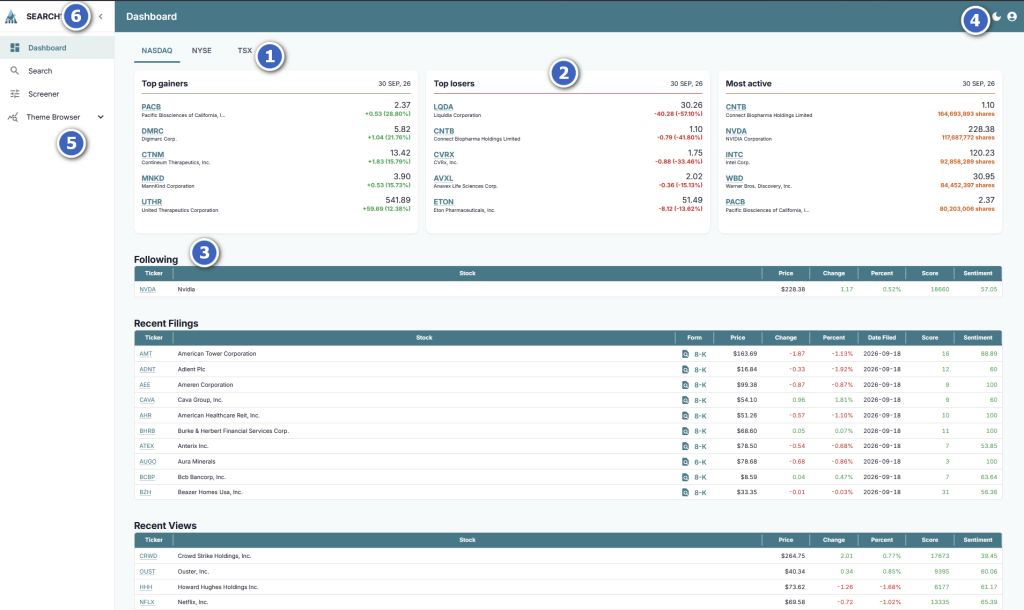
Below we walk you through the features of the dashboard
- Stock exchange to select market for (2)
- Top Gainers, Top Losers, Most Active stocks within the market
- Trending tickers and filings – Stocks you’re following, recent filings by date / name, then recent stocks you’ve viewed
- Toggle user preferences including light mode / dark mode (for the Bloomberg folks!)
- Left hand-menu to access other features
- Expand / Collapse left-hand menu
Search
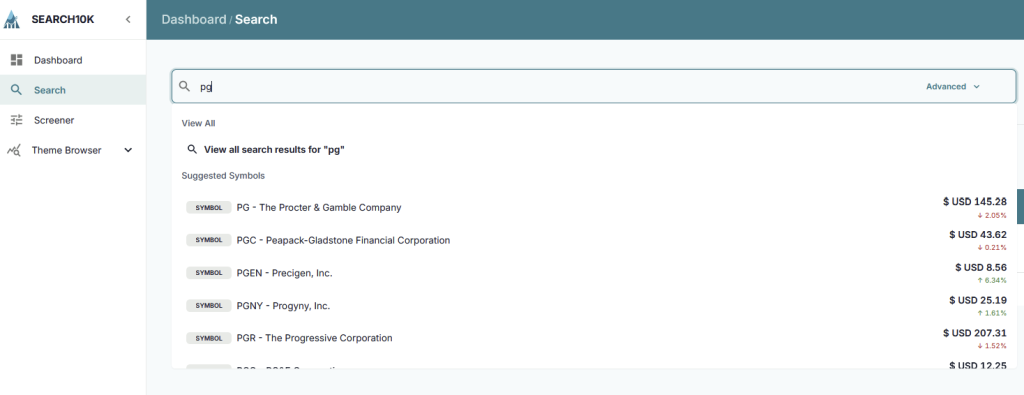
Select Search from the left-hand panel to get to the Search module. Supported searches include keywords, tickers / symbols, or CIK numbers. As you type, the most common matches appear as symbols or documents, and you can select the best match or keep typing. For example, typing PG will get you Procter & Gamble Company. To access Advanced Search capabilities, select View all search results …
Screener
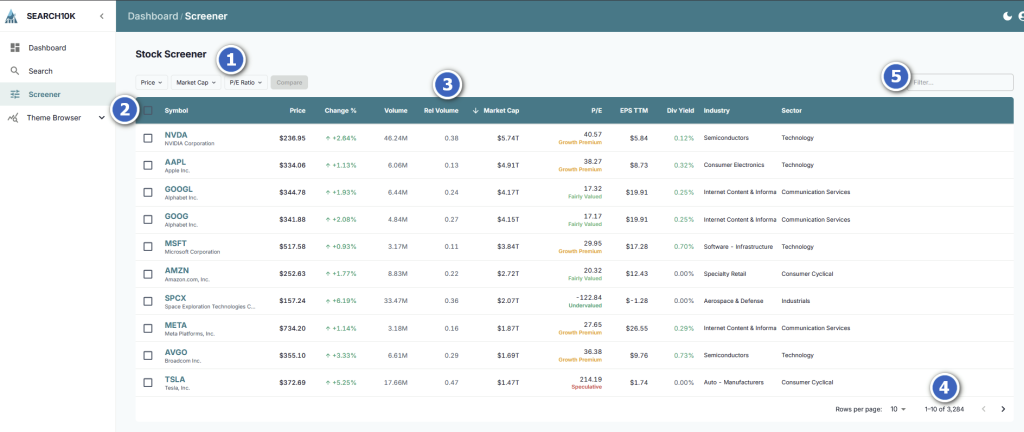
Select the Screener from the left-hand panel to get to the Screener module. Walking you through the features here:
- filters act on the result grid below, such as Price, Market Cap, Price to Earnings (P/E) Ratio
- the checkboxes to select / deselect stocks for the Compare button in the data grid
- Column headers which allow you to sort ascending / descending order, now left to right walk through:
- Symbol – as traded on exchange, with company name below
- Price – in exchange’s currency
- Change % – daily change
- Volume – number of shares traded on day
- Rel. Volume – ratio of volume traded on day versus volume in the recent past
- Market Cap – market capitalization (what the company is worth for all shares)
- P/E – price to earnings ratio (traditional)
- EPS TTM – earnings per share for trailing twelve months
- Div Yield – Dividends issued as a percentage of stock price
- Industry – designated subcategory within each Sector
- Sector – one of 11 GICS standard sectors
- Pagination controls to go forward / backward in the screener, and change rows per page of data in the grid
- Refine box to narrow down matching rows per keyword
Compare Stocks
To compare stocks, check the box to the left of the symbol for at least 2 stocks, then click Compare
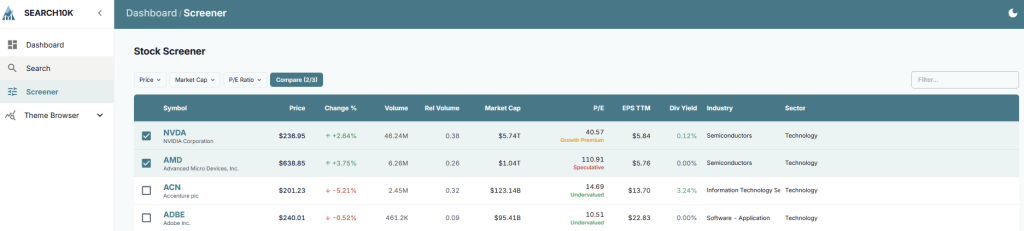
Allow for up to 120 seconds to complete the comparison across the 9 criteria within the designated sector. From there, you can view the results and then generate a printer and PDF friendly format.
Company Profile
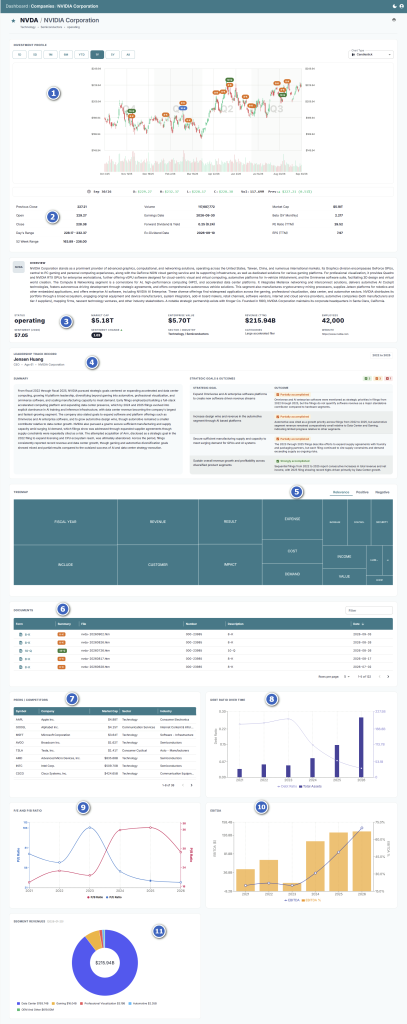
Selecting any of the blue hyperlinks in the data grid of Screener module, or from the Search module will open the Company Profile in a new tab. Company Profile walk through below features
- price chart with 10-K (annual), 10-Q (quarterly), and 8-K (announcement) filings clickable on the chart.
- Fundamentals on the stock
- Company overview
- CEO Report Card – did the CEO deliver on past commitments in the 10-K filings from up to three years ago to today?
- Treemap – tracks keyword/phrase frequency within the 10-K documents. Relevant words occur most frequently, Positive words are tagged with positive sentiment, negative words are tagged with negative sentiment. Use this to check for any unique words you weren’t expecting to see, or red-flag words that require more scrutiny
- Documents panel, listing all filings in the Search10K repository
- Peers / Competitors list to allow you to test your investment thesis against a stock’s most relevant competitors. Each has been either pulled from 10-Ks as disclosed by the company, or peers within the same industry/sector and market cap range
- Debt Ratio over the past 5 years versus Total Assets
- Price to Earnings (P/E) and Price to Book (P/B) Ratios over the past 5 years
- Earnings before interest tax depreciation amortization (EBITDA) as absolute dollars or as percentage of revenue
- Segment Revenues as disclosed in 10-K by company
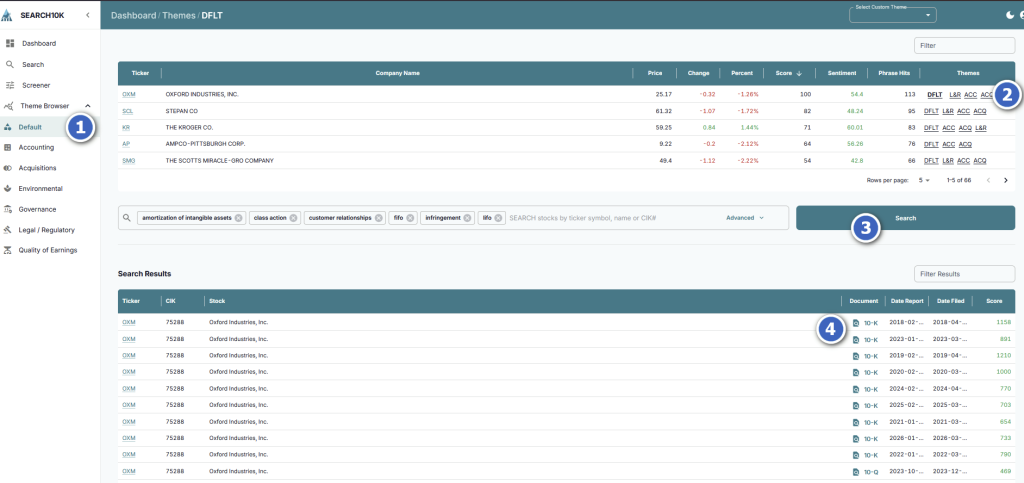
Theme Browser
Step 1: If you select the down arrow beside Theme Browser, it will expand into submenu options.
- Default is a catch-all category that includes all the categories below it.
- Accounting includes keywords/phrases that correspond to GAAP deviations or other red-flags
- Acquisitions includes keywords/phrases associated with past or future mergers and acquisitions
- Environmental includes keywords/phrases revolving around environmental impact, including climate change risk, emissions, physical damage.
- Governance includes keywords/phrases associated with non-arms-length transactions, conflicts of interest, or other leadership accountability issues
- Legal/Regulatory includes keywords/phrases corresponding to litigation risk, regulatory compliance, fraud/investigations
- Quality of Earnings includes keywords/phrases related to earnings risks, revenue recognition
Step 2: If you select a theme for a stock on the upper-right half of the window, it will fill in matching keywords/phrases.
Step 3: Search, and Search10K will deliver results for documents matching the theme in the lower half.
Step 4: Select the hyperlink for each Document to open the Document Viewer.
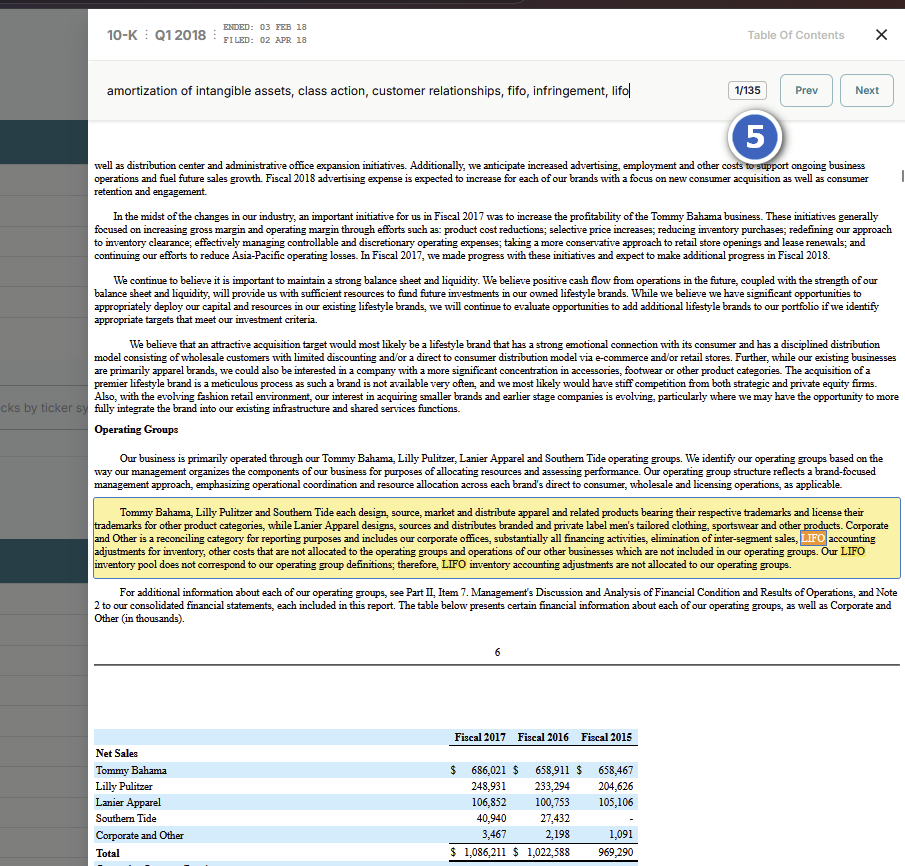
Step 5: Within the viewer, you can navigate with next/back buttons and scroll vertically to review.
Impact Investing
Impact investing refers to environmental or societal benefits that can be gained from an investment in addition to profits and returns. For example, renewable energy resources can help reduce reliance on fossil fuels. Use the Environmental theme or create your own Custom Theme with the steps below to help screen for such stocks.
Custom Themes
TBD